How To Use Page Transitions in Avada
Last Update: October 7, 2026
Page transitions occur when visitors navigate between the pages of your site. These use the View Transitions API of the browser, and so browsers without support, and visitors who prefer reduced motion, navigate without a transition. Read on to find out more about Page Transitions, and watch the video below for a visual overview.
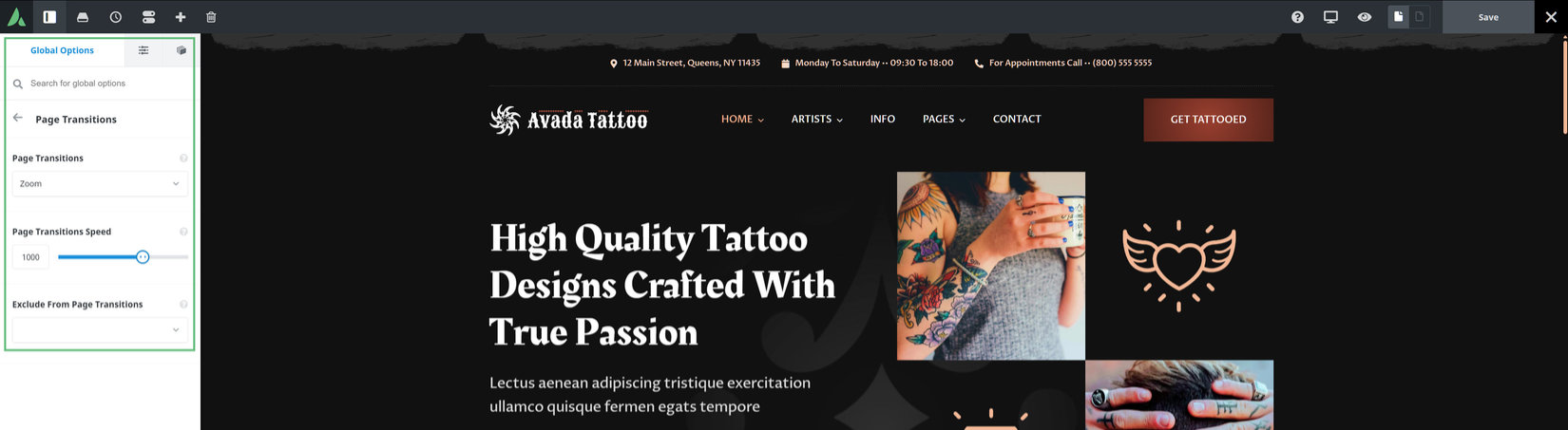
Options > Extras > Page Transitions
To set your global page transitions, heed to Options > Extras > Page Transitions. You can choose from Fade, Slide Up, Slide Down, Zoom, Blur or Reval. Once you make a selection for the page transition, two other options appear – Page Transition Speed and Exclude from Page Transitions.
The first of these options controls the speed of the page transition in millisenconds and can be anywhere from 100ms to 1500ms duration. The Exclude from Page Transitions option allows you to exclude Headers, Footers or Page Title Bars from the page transiton.
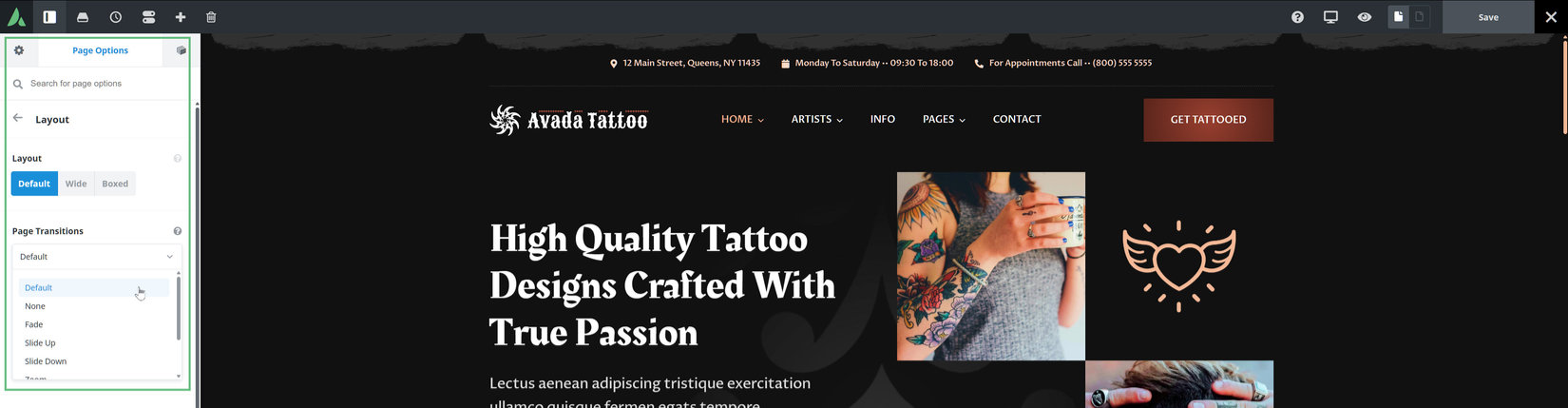
Page Options > Layout > Page Transitions
There are also page options so you can exclude certain pages from the global transitions. Simply head to Page Options > Layout > Page Transitions and by selecting None you can disable the particular page from the feature, both when navigating away from and to the page. Alternatively, you can set a different transition for that page.