How To Use Full Screen Scrolling Sections

Last Update: August 23, 2026

Full Screen scrolling sections offers you a way to combine multiple full height containers into full screen scrolling sections with side navigation. With this tool, you can set up a beautiful one page scrolling website or you can simply add them into any page/post as part of your page content.

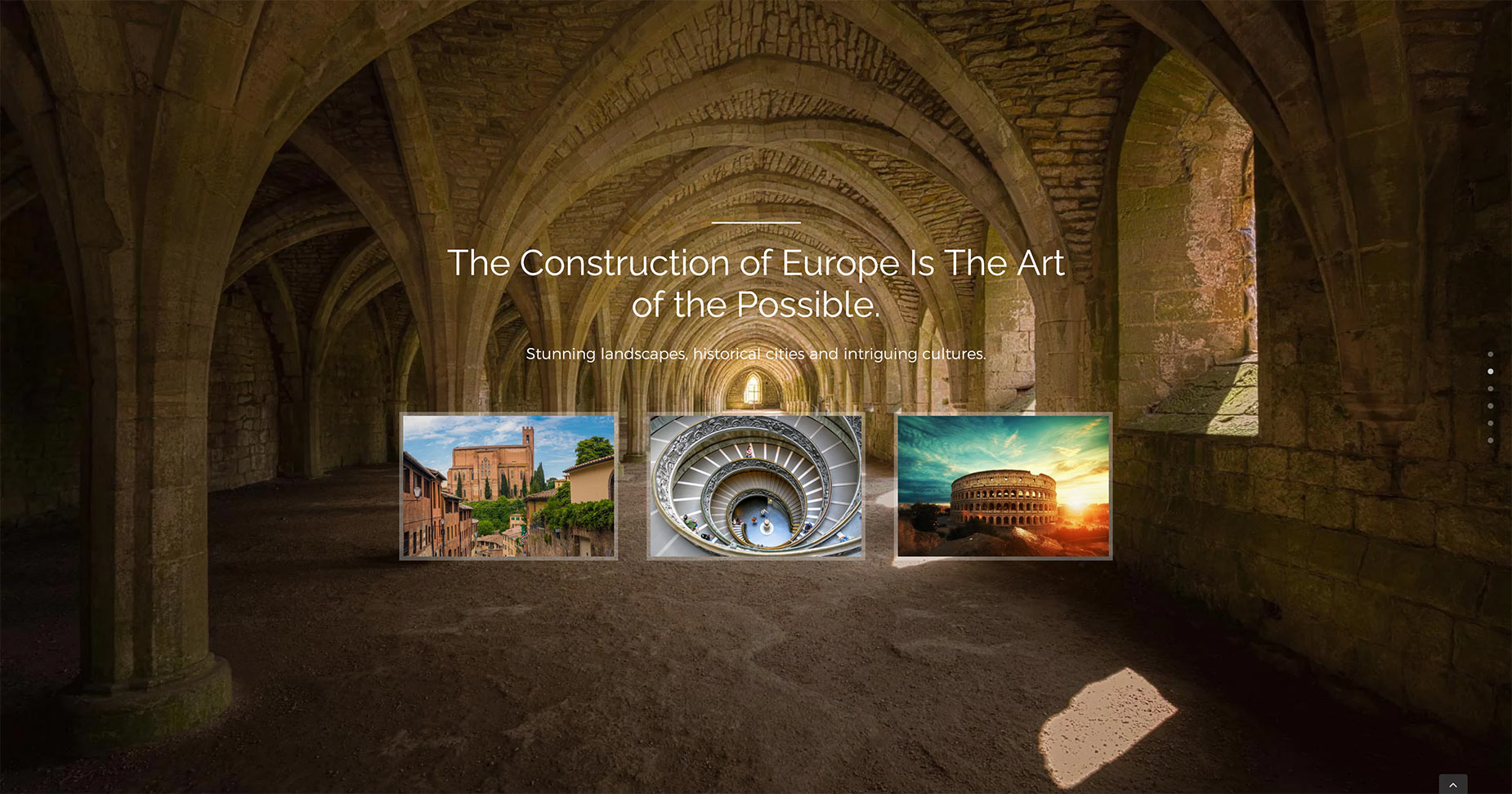
See an example below of full screen scrolling sections from the Avada Adventure website. Note the navigational dots along the right hand side. Please continue reading below to know more about this awesome feature, and watch the video below for a visual overview.
For privacy reasons YouTube needs your permission to be loaded.
Full Screen Scrolling Section Example

Full Screen Scrolling sections, also known as 100% Height Scrolling Sections can be activated via the individual Container Settings of the included containers. You will need at least 2 consecutive containers that are both Full Height and have Enable 100% Height Scroll enabled for this feature to work.

When Enable 100% Height Scroll is activated, the containers will display an orange color for the element controls. Please follow the steps below to set up full screen scrolling sections.
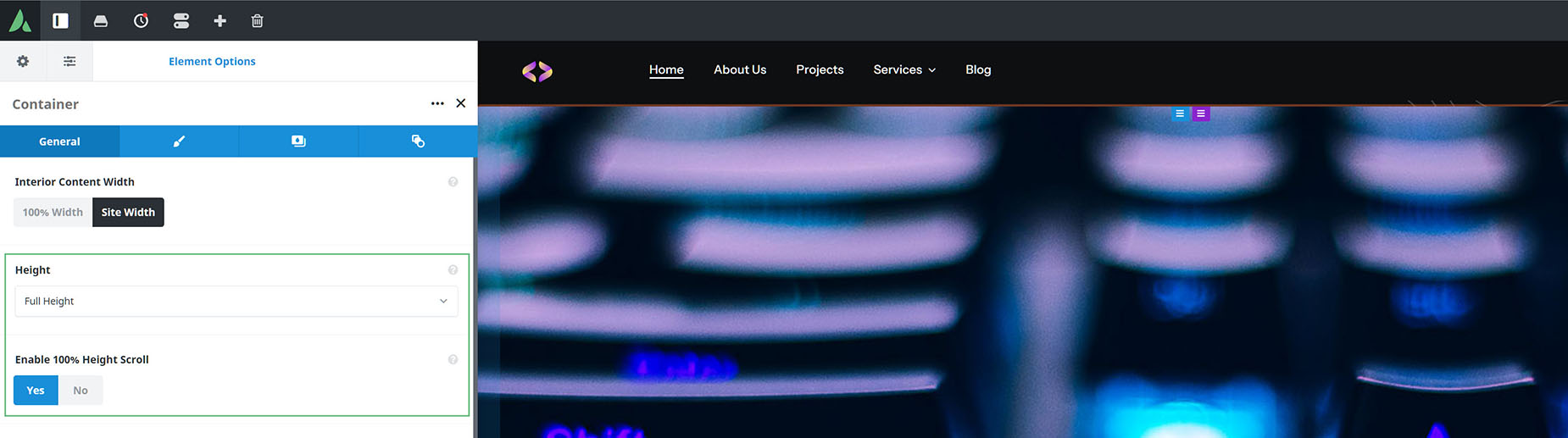
Fullscreen Scrolling Secions - Container Options

How To Set Up Full Screen Scrolling Sections

  • Step 1​​​ – On the General tab of the first included Container, set the ‘Height’ option to Full Height. An ‘Enable 100% Height Scroll’ option will appear below this, and you then set this to,Yes.
  • Step 2​​​​ – Add your container content. A full height background image is a good start.

  • Step 3​​​​ – Follow steps 1-3 for the other containers that you will include in the scrolling section group. Remember to save your changes.

How To Customize Full Screen Scrolling Sections

Navigate to Avada > Options > Avada Builder Elements > Container. Here you can set your preferred default options and behavior for 100% containers. This includes the styling of the navigation areas, the animation chosen for the transition between scrolling sections (here you can choose from Fade, Slide, Stack. Zoom, Slide Zoom In, ans Slide Zoom Out),
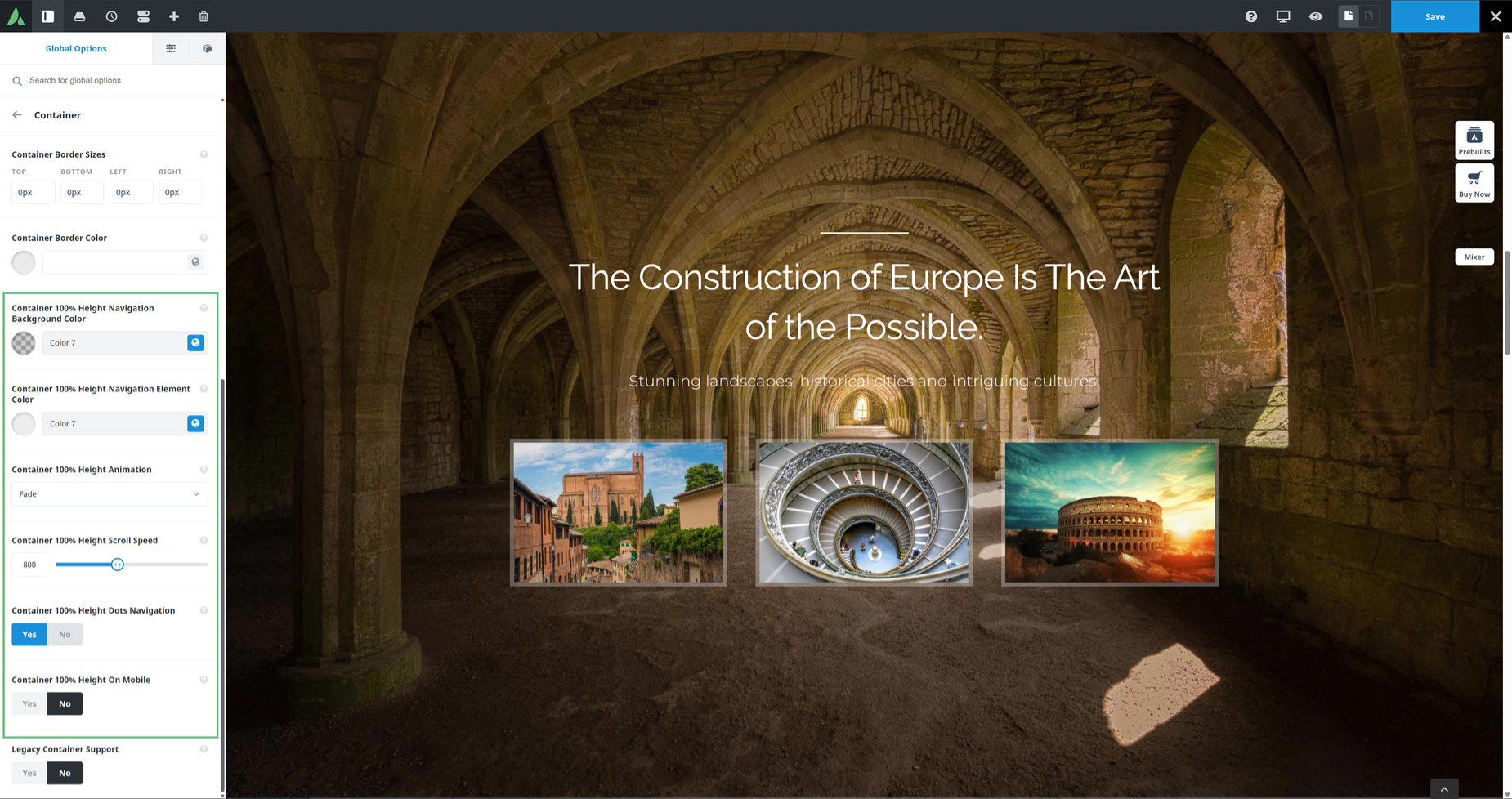
  • Container 100% Height Navigation Background Color – Controls the background colors of the navigation area and name box when using 100% height containers.

  • Container 100% Height Navigation Element Color – Controls the color of the navigation circles and text name when using 100% height containers.
  • Container 100% Height Animation – Select the animation of the scrolling transition on 100% height scrolling sections. Here you can choose from Fade, Slide Up, Slide Right, Slide Left, Scroll Right, Scroll Left, Scroll Right Free, Scroll Left Free, Stack. Zoom, Slide Zoom In, and Slide Zoom Out.

  • Container 100% Height Scroll SpeedControls the speed of the scrolling transition on 100% height scrolling sections. In milliseconds.

  • Container 100% Height Dots NavigationEnable / Disable the dots navigation for 100% height containers. Disabling dots navigation may be useful if using custom navigation.

  • Container 100% Height On MobileTurn on to enable the 100% height containers on mobile. Please note, this feature only works when your containers have minimal content. If the container has a lot of content it will overflow the screen height. In many cases, 100% height containers work well on desktop, but will need disabled on mobile.

Fullscreen Scrolling Sections - Global Options
Copy to Clipboard

Page Options

There are also a couple of options in the Page Options to override the Gklobal Options.

  • Container 100% Height Animation – Select the animation of the scrolling transition on 100% height scrolling sections. Here you can choose from Fade, Slide Up, Slide Right, Slide Left, Scroll Right, Scroll Left, Scroll Right Free, Scroll Left Free, Stack, Zoom, Slide Zoom In, Slide Zoom Out, and Stacking Cards.

  • Container 100% Height Dots NavigationEnable / Disable the dots navigation for 100% height containers. Disabling dots navigation may be useful if using custom navigation.

Anchor Scrolling With 100% Height Scrolling Sections

Anchor Scrolling is possible with Full Screen or 100% Height scrolling sections. Please click the button below for the detailed documentation on how to set up Anchor Scrolling.

Things To Keep In Mind When Using Full Screen Scrolling Sections

Full Screen Scrolling sections have their own challenges, and below is a list of some important things to keep in mind:


  • All content of the scrolling section must fit into the 100% viewport height. Otherwise, if the content is too large, it will be cut off.
  • Mobile Devices are shorter in height so the ‘Container 100% Height On Mobile’ option, found in Options > Avada Builder Elements > Container section, is disabled by default. The ‘Container 100% Height On Mobile’ feature only works when your containers have minimal content. In many cases, 100% height containers work well on desktop, but will need to be disabled on mobile.

  • Container Visibility settings – this option will be hidden when the ‘100% Height’ option is set to Yes.

In this article